This guide explains how to download an entire gallery folder as a .zip file instead of saving every photo one by one.
Before you start
Individual photos can be saved from each image page with the download icon:
For concerts, tours, scans, or larger folders, use the batch download option instead. Because the ZIP plugin only works for logged-in users, I made a limited guest account.
This is a limited dummy account. It cannot edit the gallery, change the password, upload files, or access anything private.
How to download a folder
Log in first
Use the guest login above before trying to batch download. If you are not logged in, the ZIP option will not appear.
Open the gallery folder you want
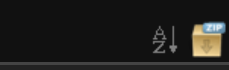
Go to the album/folder you want to save. The ZIP button appears near the upper right area, close to the sorting and display options.
The ZIP icon looks like a small cardboard box labeled ZIP.
Click the ZIP icon
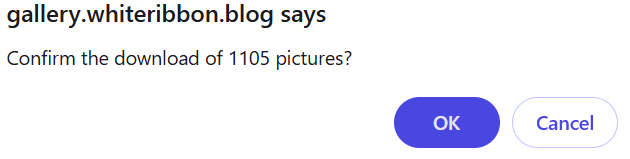
Your browser will ask you to confirm the download. Press OK.
Browser confirmation message before creating the ZIP file.
Wait for the gallery to prepare the file
Please give the server a moment. Bigger folders take longer because the gallery has to create the ZIP file before your browser can download it.
The green bar means the archive is being prepared or downloaded.
Open the downloaded ZIP file
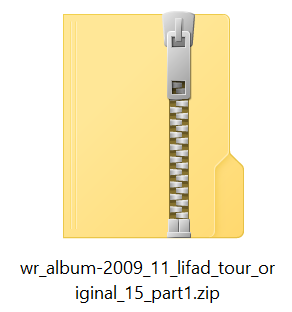
The file will usually appear in your browser’s Downloads folder. It may say part1 in the filename.
If the filename says part1, ignore it. There is no second part.
Open the file and extract it. Most computers can open ZIP files already, but 7-Zip is a good free option if you need one.
Restrictions
Maximum: 4,000 images per folder.
Maximum ZIP size: 900MB.
The generated ZIP file deletes from the server after 12 hours.
If you pause longer than 12 hours the file expires, you must restart the process from the beginning.
Do not download the entire scans folder at once. Use the scan subfolders individually.
If something goes wrong
If the ZIP does not start, the folder may be too large, the generated file may have expired, or the gallery may need a moment to finish processing the PHP command sent. This will be true for large concert folders.
Try again. Make sure you're not trying to download 2GB of scans. Use scan subfolders! If it still fails, please contact me.